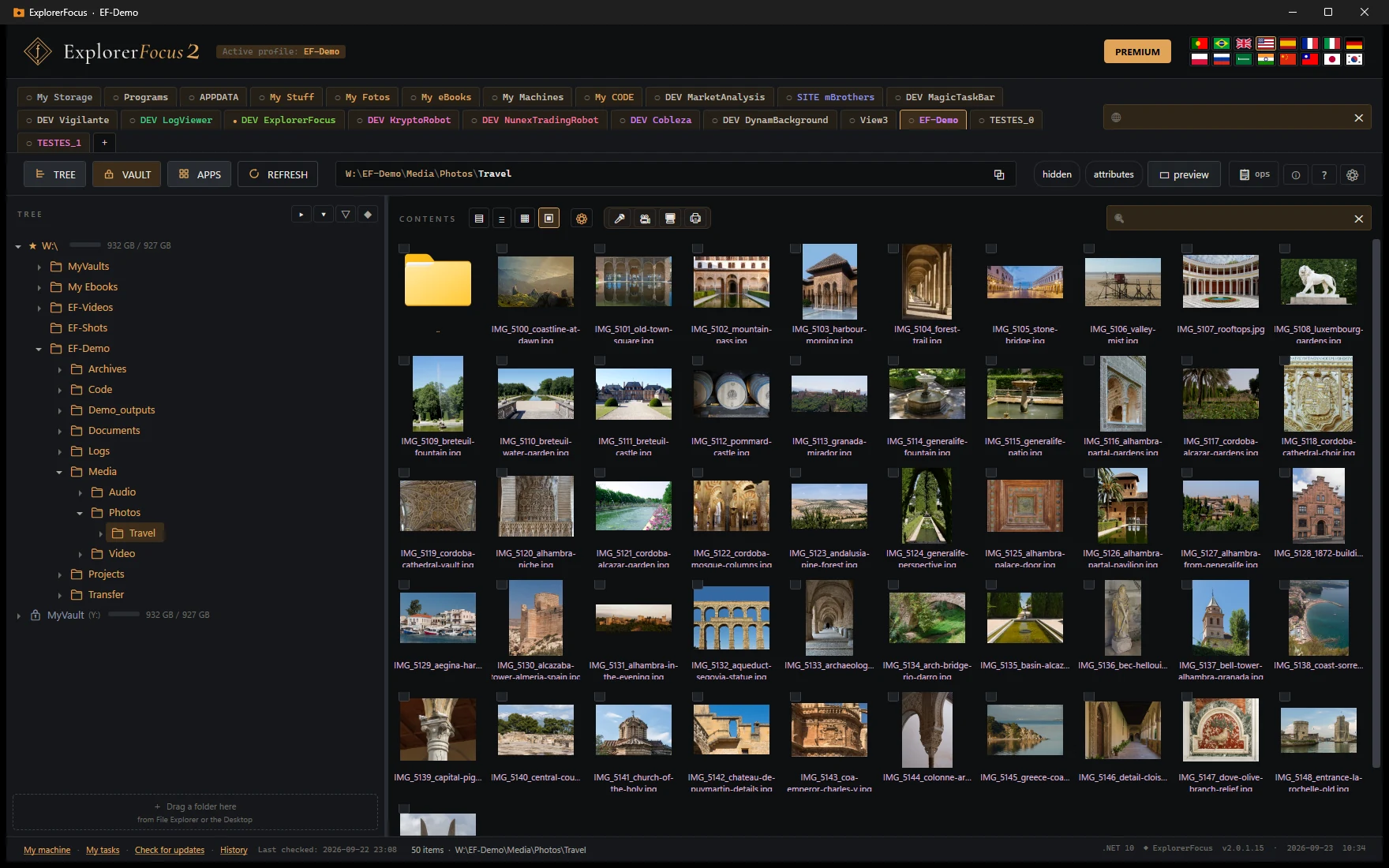
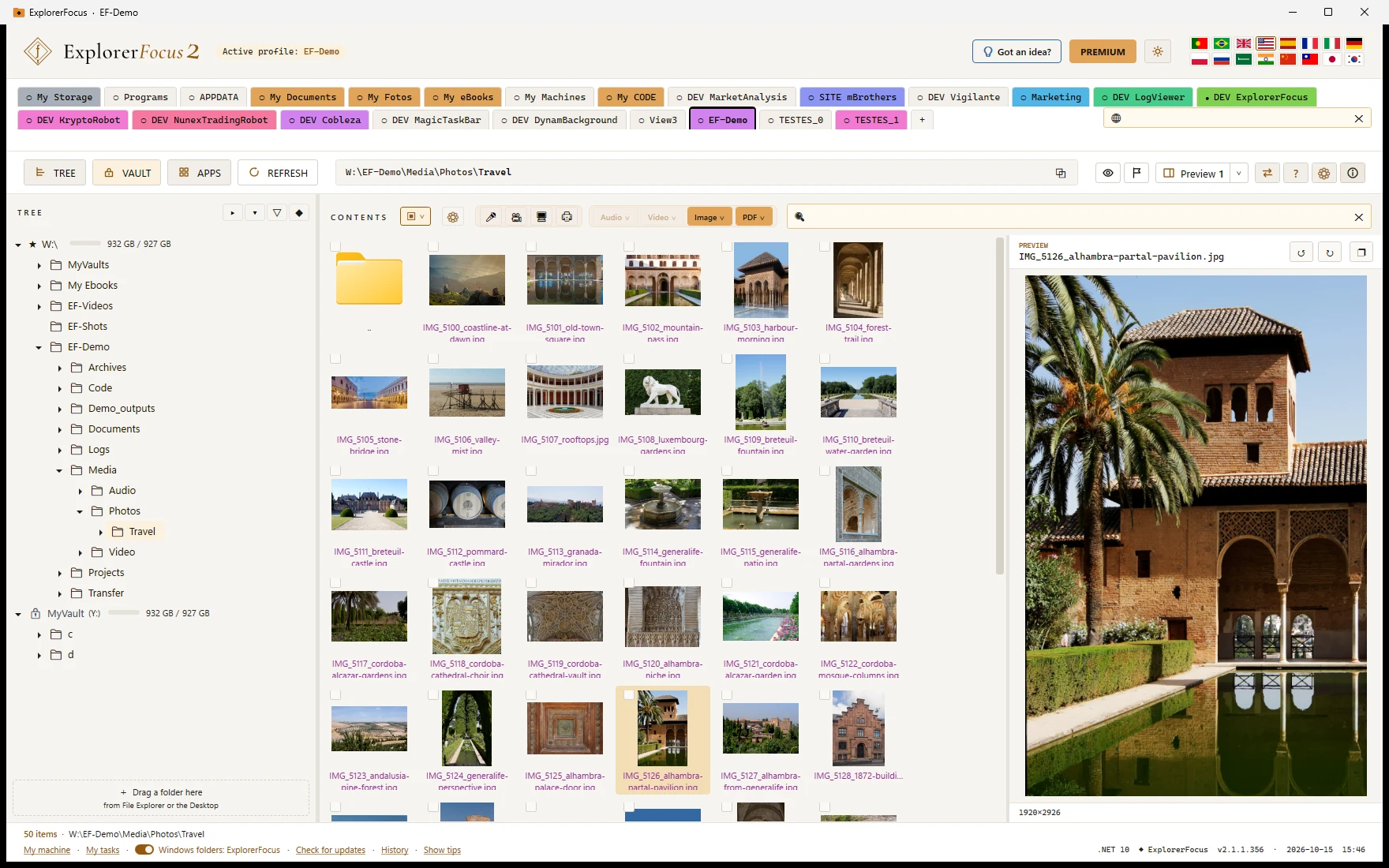
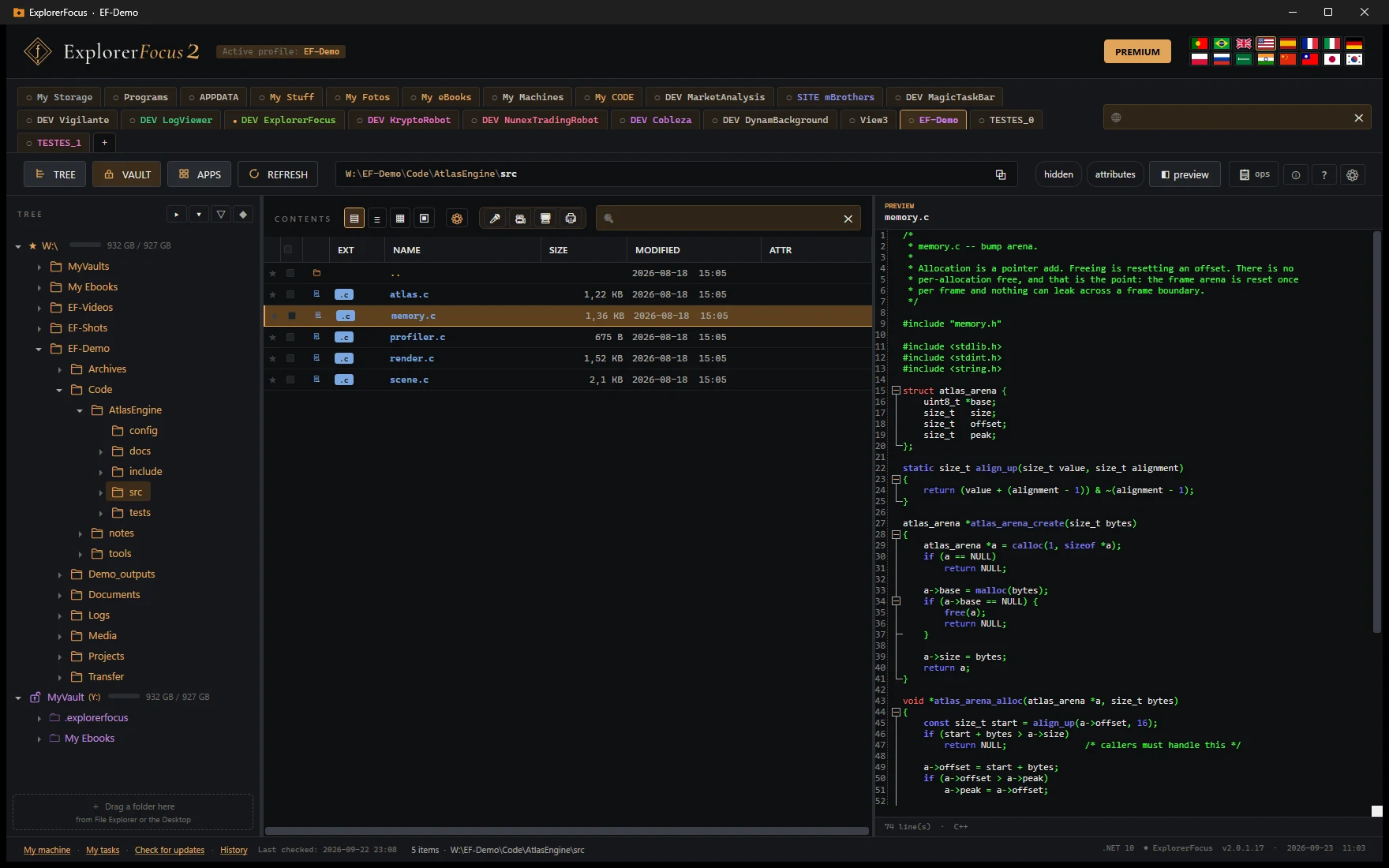
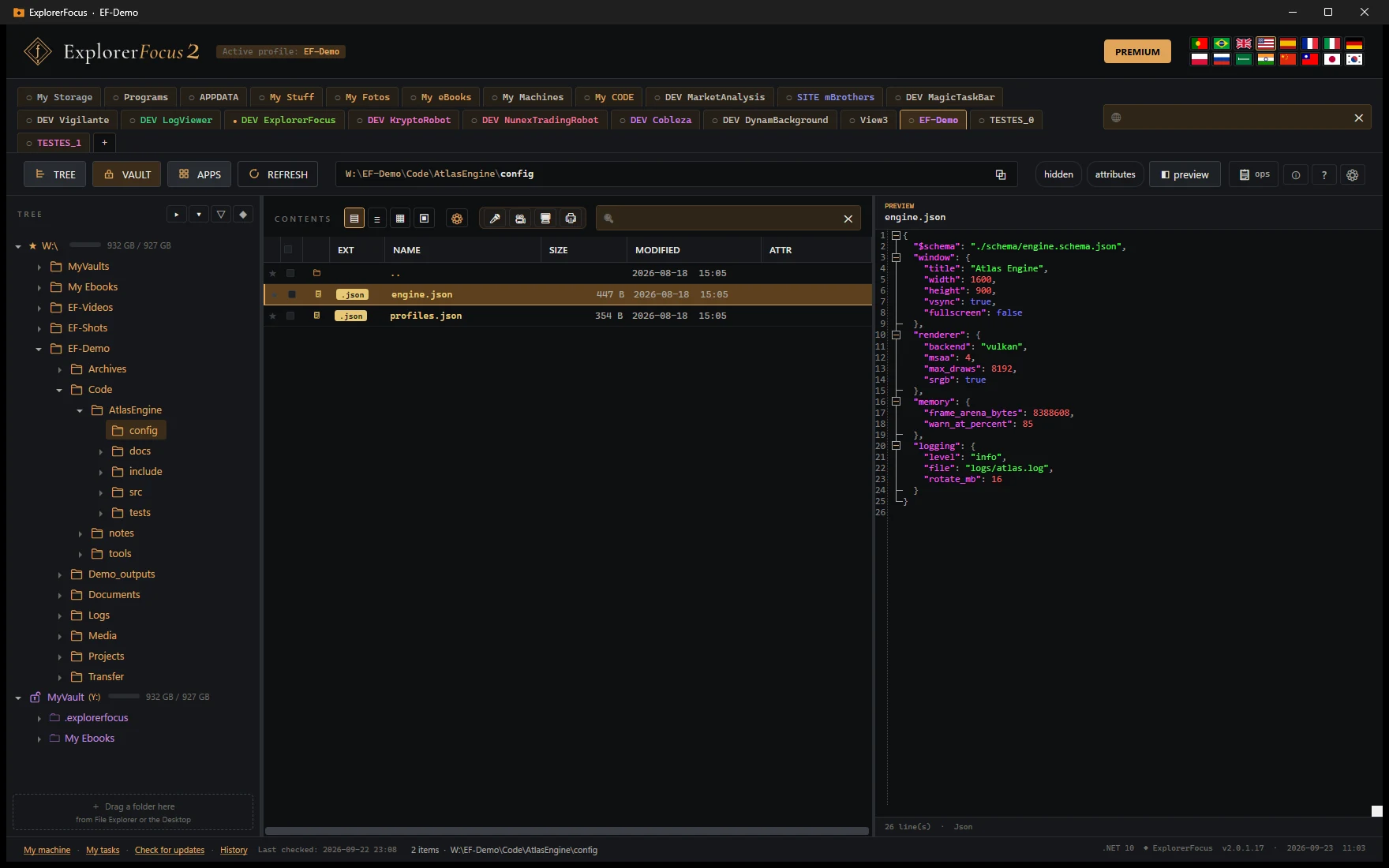
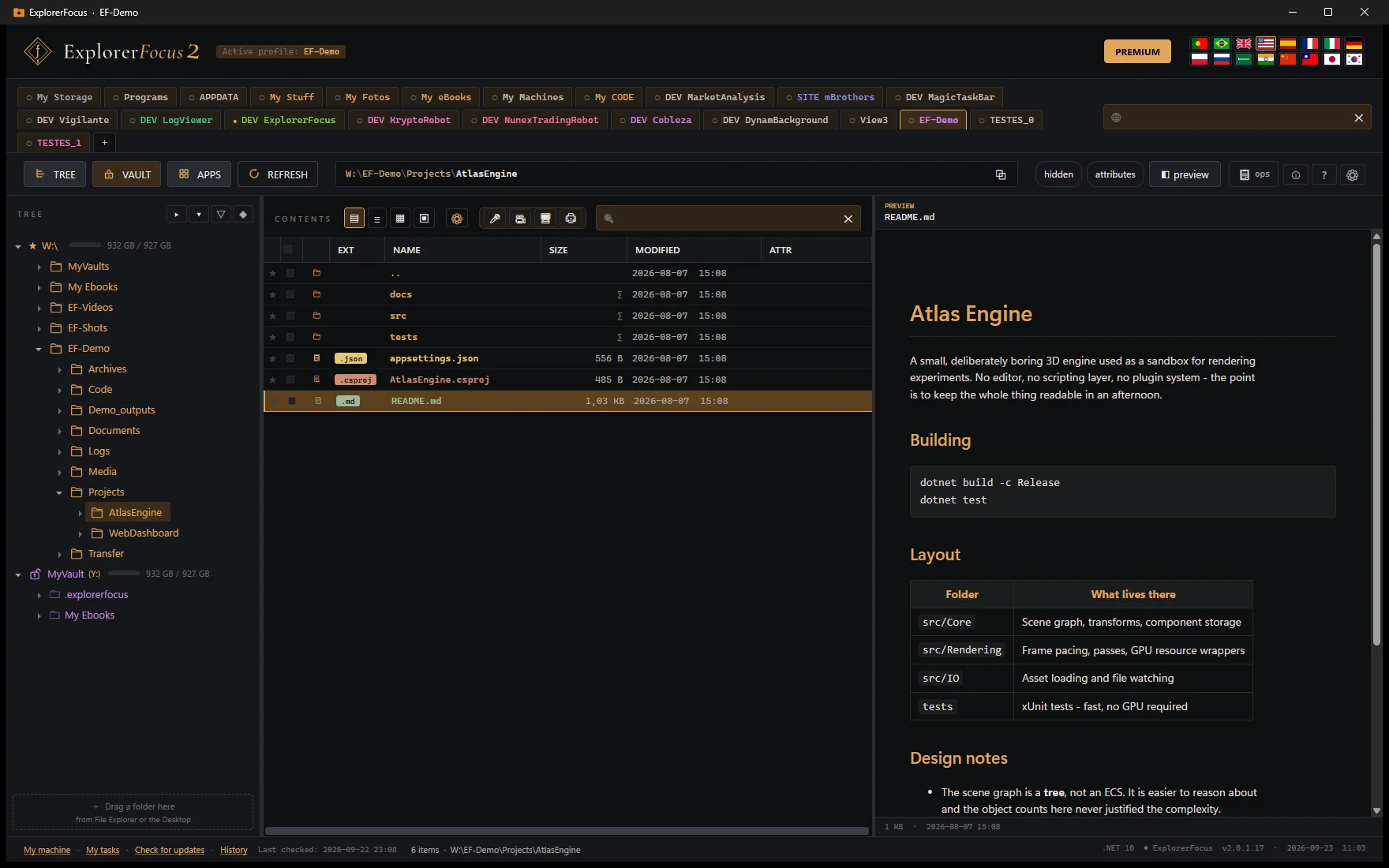
ExplorerFocus is a Windows Explorer replacement for people who always work in the same folders. Configurable profiles, clean trees, a preview that opens almost anything — code, documents, books — and operations that actually tell you what's happening. Without the shell's noise.
ExplorerFocus now listens: it writes down what is said in audio and video files, and translates what is said, subtitles, a video as it plays, PDFs and books. All on the computer itself. The translation is automatic, and worth reviewing.
SUBTITLES
In the language you want.
Create subtitles… listens to the video and writes the subtitles with their timings, in the spoken language or translated. Translate subtitles… turns an .srt into another language. They are saved next to the video, and the preview and players such as VLC find them on their own.
LIVE
While the film plays.
In the preview, a film in another language gets translated subtitles without stopping. Also inside a vault.
IN BATCH
A whole series at once.
Create subtitles in batch… subtitles every episode, in English and in the chosen language, while you do something else. Stopping halfway loses nothing: it carries on from where it stopped.
TRANSCRIBE AND DICTATE
From sound to text.
The text of a recording, as text, Word, PDF or subtitles — even when more than one language is spoken. And on the 🎤, Record and transcribe writes down what is said, as you speak.
PDF AND BOOKS
A whole book in another language.
A PDF, scanned ones too, or a book in EPUB, PDF or FB2, translated into another language. A long job can be paused and continued later.
ON THE COMPUTER ITSELF
Nothing leaves it.
The ear and the translator come once, only with permission, and serve every language. After that, the sound, the text and the translations stay on the computer, and no internet is needed. With a graphics card, much faster.
Free: dictating to .txt, on the 🎤. PREMIUM: subtitles, live subtitles, the batch, transcribing to Word, PDF and subtitles, and every translation.
§ 02 · Catalog
What really makes a difference.
Each feature was added to answer a concrete problem in daily work over a known file tree. None is there for show. Almost all can be toggled on or off.
Right-click a tab → "Include in global search". The dot indicator (●/○) shows what's in. The results open right in ExplorerFocus — in this window or a new one, on the chosen file.
Rich preview pane. Each file type with its ideal rendering.
Text with syntax highlight via AvalonEdit, images decoded in the background, PDFs rendered by the Edge engine (WebView2), Markdown converted to HTML with a dark theme by Markdig. Individually toggleable. Cancels previous load if you change selection.
SOURCE · MainViewModel.cs · C#
1 namespace ExplorerFocus.ViewModels;
/// <summary>Main view-model.</summary>
public partial classMainViewModel
{
private readonly ProfileManager _profile;
public PreviewViewModel PreviewVM { get; }
publicMainViewModel(ProfileManager p)
{
_profile = p;
PreviewVM = new("appearance");
}
}
MARKDOWN · README.md
ExplorerFocus
A focused Windows Explorer replacement. Built around configurable folders, it forgets everything that doesn't matter.
net10.0-windows · WPF · single-file
Note — preview works with Edge WebView2 installed (ships with Windows 10/11).
Floating window shows per-file gauge, real speed, ETA, global count. Pause, resume, cancel. Up to 6 parallel operations. Get on with your life while it runs.
Auto-detect new extensions. Shared across profiles.
Enter a folder with .dwg, .psd, .bak? An aggregated dialog asks once. Per-row picker (browse to the .exe; name auto-resolved by FileVersionInfo). Mark as ignored those you don't care about. The list persists.
One button, next to PREMIUM: dark, light or like Windows, without restarting. In light mode, two sliders set the white of the background and the darkness of the text. Each window keeps its own.
A 1.8s tooltip over any file shows computed size, dates, attributes. Folders carry the recursive size — computed lazily, with a semaphore to avoid hammering the disk.
Normal click selects. Shift+click extends with "majority decides" semantics — if the range is mostly already selected, it unmarks; otherwise it marks. Ctrl+click toggles individually. No more "I lost all selections by accident".
Self-contained, single-file, compressed and digitally signed. Copy to a flash drive and it runs on any 64-bit Windows 11. It also runs on Windows 10 version 1809 or later, without support. No .NET to install. net10.0-windows + WPF — no dependencies outside the executable's folder.
Not just the menus — every dialog, every message, every tooltip. Pick one and the interface changes on the spot: nothing to restart, nothing to reinstall.
Manufacturer, model, firmware and serial number. Platter or solid state — and it says which, because a platter pays a seek penalty. Bus, sector size, partition scheme, the device underneath. What the file system really supports: EFS, per-file compression, hard links, junctions and symbolic links, sparse files, quotas, ACLs, the USN change journal, case sensitivity. And SMART data, when the disk gives it.
Manufacturer · Model · Firmware · Serial · SMART · GPT/MBR · Sector size
Everything the machine knows about itself — and never shows.
Firmware identity and serial numbers, when the machine was built, what is soldered to the board, the memory slot by slot, and how Windows was installed. Read-only: it never goes online and never asks for elevation.
SMBIOS · Firmware · Memory · Devices · Windows install
Windows says the file is open somewhere and never says where. This one knows, because it lives inside the explorer. It also answers three questions the system's own manager doesn't: what runs from your user folder, what is not signed, and which of two copies of the same program is which version. Ending a process asks first — with the name, the PID and the window title — and the ones that would blue-screen the machine have no button at all.
SFTP, FTP/FTPS and WebDAV — the explorer reaches the server.
Connect to SFTP, FTP/FTPS and WebDAV (Nextcloud, ownCloud, NAS, IIS). Browse, preview, upload and download, create folders, rename and copy/move — with byte-level progress and cancel. Edit remote files locally and sync on save. Password or SSH key auth; secrets encrypted with DPAPI.
SFTP · FTP/FTPS · WebDAV
Free: 1 SFTP/FTP/FTPS connection — browse and preview only. PREMIUM unlocks WebDAV, multiple connections and all operations.
Dropbox and OneDrive — your cloud inside the explorer.
Connect to Dropbox and OneDrive via secure OAuth — no passwords stored. Browse, preview, upload and download, create folders, rename and copy/move, like a local folder. Your files never pass through our servers.
Dropbox · OneDrive
PREMIUM: required from the first connection — browsing, preview and all operations.
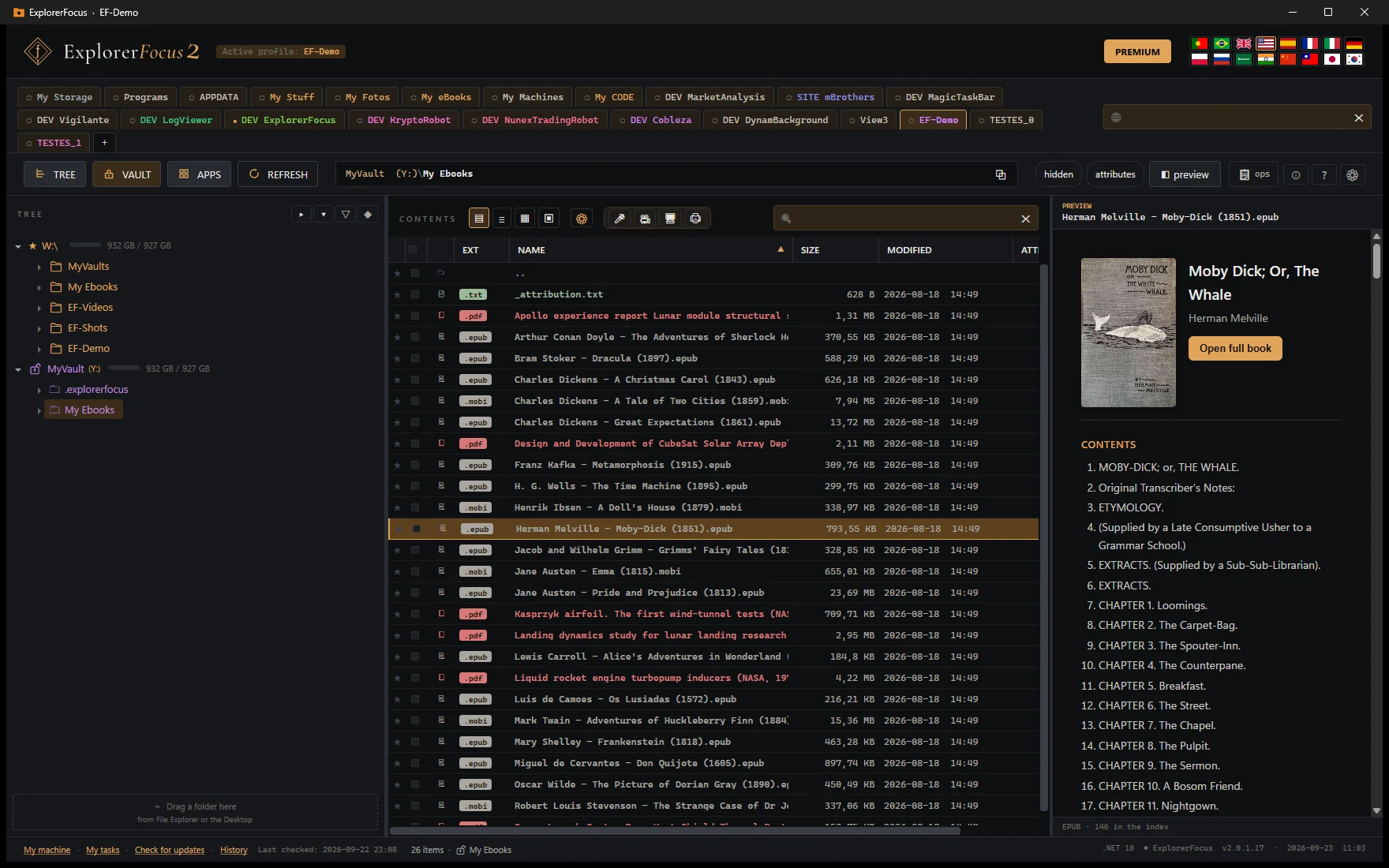
Eight book formats — preview and read, without leaving the explorer.
Instant preview of any .epub, .mobi, .azw, .azw3, .prc or .fb2: cover, table of contents and the opening text. Open the full book in its own reader, with chapter navigation, page jump, auto-scroll and your reading position remembered. Comics too: .cbz and .cbr open page by page, without unpacking hundreds of megabytes first.
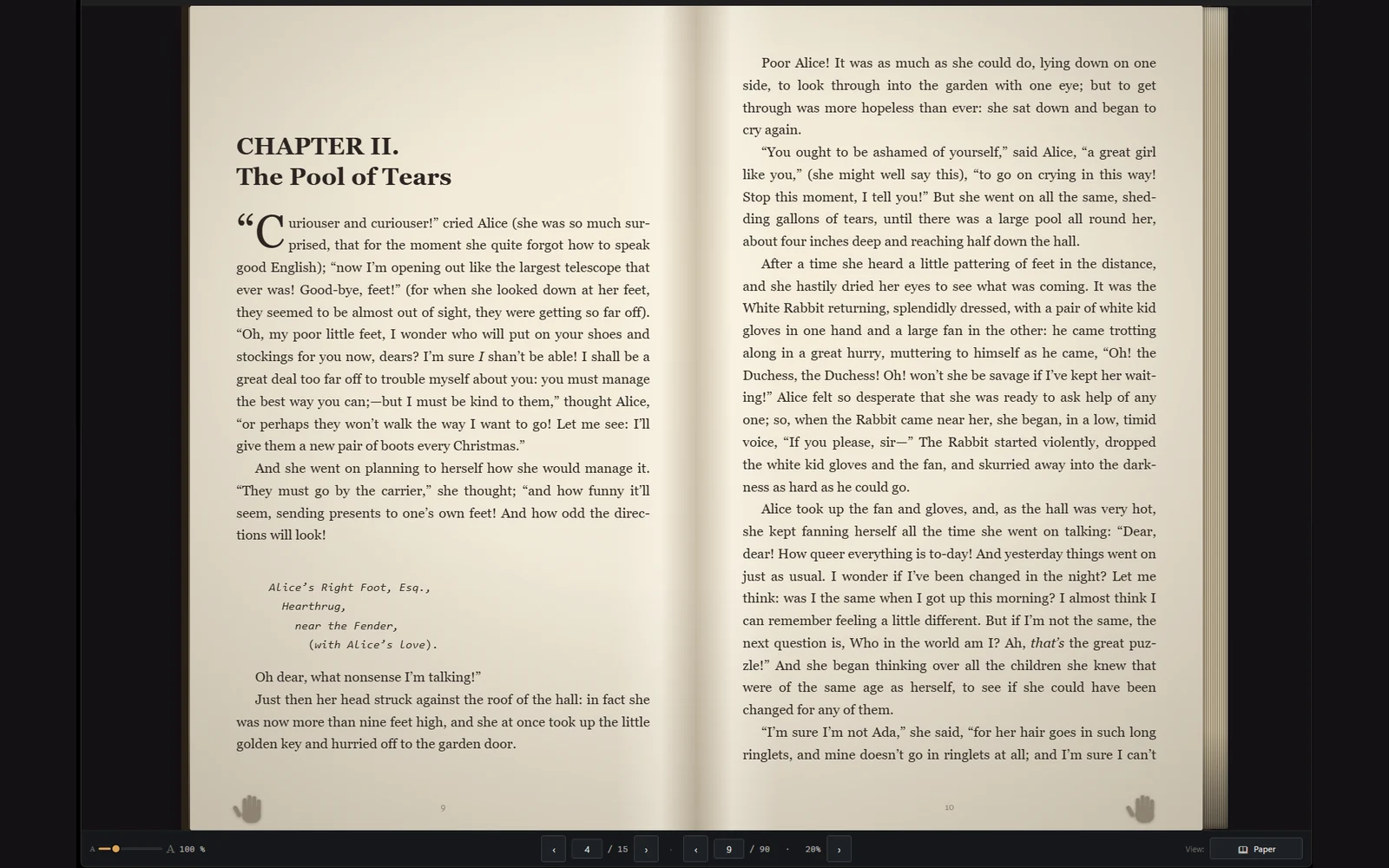
Paper mode. The same book, another look: two facing pages, the spine down the middle, paper with grain and lamp light, and the sheet folding under your hand as it turns. One button cycles plain · paper · night paper, and plain stays the default. It does not become a real book — no texture, no sound of the page, no smell, none of the weight of picking it up and putting it down — but a screen can come close. What that buys is comfort, and comfort is personal: everyone reads better in their own way. This is simply one more.
The E-books button. Select a book and the E-books button lights up at the top: open it in the reader, convert it between EPUB, PDF and FB2, or translate the whole book. Comics (CBZ, CBR) become a PDF or a fixed-layout EPUB, and a PDF becomes an e-book, with the chapters from its bookmarks.
EPUB · MOBI · AZW · AZW3 · PRC · FB2 · CBZ · CBR
Free: preview — cover, contents and a first look inside. PREMIUM: full reader — navigation, page jump, auto-scroll, paper mode, page-turn and memory of your last 20 books — and the E-books button.Books you own open. Books bought with DRM stay locked to the store that sold them — the app explains why when it finds one.
Word, Excel, PowerPoint and more — see without opening anything.
Preview Word (.doc/.docx), Excel, PowerPoint, RTF and OpenDocument (text, sheet and presentation) right in the pane. Audio and video play in the preview, with a floating window and volume/speed controls. A marker flags files that have a preview; password-protected files are flagged without asking for the password.
Word · Excel · PowerPoint · RTF · OpenDocument · Audio · Video
One click records the microphone into the current folder. Pick the microphone, watch the live level meter, adjust the recording volume and save as MP3, AAC, WMA, WAV, FLAC or ALAC.
Scan from the flatbed or the feeder (ADF), many sheets at once. Choose the resolution and colour — colour, grayscale or black & white. Save as JPEG/PNG or merge everything into a multi-page PDF, and keep adding sheets to the same PDF.
Flatbed · Feeder (ADF) · Colour · Multi-page PDF
Free: 1 flatbed page, with a watermark. PREMIUM: multiple pages, feeder (ADF) and no watermark.
Double-click (or Browse inside) to enter the archive — browse the contents, preview and copy files out without extracting everything. Read-only; Open with… still opens them in WinRAR/WinZip/7-Zip.
Record the screen straight into the folder — with an optional camera.
Pick a region of any monitor (or the whole screen) and record to MP4 with the microphone. Add the camera: switch screen⇄camera with transitions (fade, wipe, slide, mosaic), show it as PiP in a corner, or side by side in split screen.
Region · Microphone · System sound · Camera · PiP · Split screen · Transitions · MP4
Free: watermark + 15 s and no sound. PREMIUM: no watermark, no time limit and with sound (microphone + system).
Intro and end cards for your videos — right in the recording.
Give your recordings (screen and camera) an intro card, a permanent text banner and a credits-style end card (up to 10 lines). 5 independent models, each with 3 presentations, logo, background colour and an episode badge — built for a consistent video series.
Intro · Banner · End (credits) · 5 models · Logo · Episode badge
PREMIUM. Discreet “Made with ExplorerFocus” signature on the end card.
Narrate your videos after recording — even on your own.
Record the screen silently, then in a dedicated box play the video while you narrate over it. The narration lands in a separate file; add background music, balance the volumes (so the music won't drown the voice) and generate the final video with all three sources.
Record silent · Narrate over the video · Music · Volumes · Video + narration + music → final
PREMIUM. The video and narration stay as separate files; only “Generate final” creates the mixed video.
Cut, split and join audio — without opening an editor.
Select an audio file and the Audio button lights up at the top. Cut a section while listening, split it into parts at the points you mark or into equal parts, join several into one — even of different formats — and change format in one click: MP3, AAC, WMA, WAV, FLAC or ALAC. MP3 tags (title, artist, album and cover) are written into the file itself, without touching the sound. In Adjust the audio…: the volume and normalize, the speed without changing pitch, fade in and out, trimming the silence at the start and end, and shortening the pauses of a voice recording. The original stays as it is.
X-ray and transcription. The Audio X-ray… shows the format, the channels, the tags and every metadata field, and Transcribe… turns a recording into text.
Free: cut, split, join, change format, MP3 tags and the Audio X-ray. PREMIUM: Transcribe… and Adjust the audio… Both open for everyone: you see and hear what they do before you have PREMIUM.
Cut, rotate, shrink and adjust videos — right where they are.
Select a video and the Video button lights up. Cut a section or take one out of the middle, split into 30-second parts for statuses and stories, join several into one, rotate a video filmed sideways — an MP4 without losing any quality — and save a frame as a JPG without stopping the video. The video's sound goes out to MP3, AAC, WMA, WAV, FLAC or ALAC, or you keep a copy without sound. With PREMIUM: convert or shrink to fit WhatsApp — the box tells you how big it will be before converting — a light GIF of a section, the video in reverse, add a sound (music or narration), and Adjust the video…: colours and black and white, speed from 0.25× to 4× without the voice changing, fade in from and out to black, the volume, the 9:16 crop for social media, the mirror and the watermark — all in one pass, and seen before saving. The original stays as it is.
X-ray, 5.1 and subtitles. The Video X-ray… says everything the file contains and, when it won't play on this computer, why and what to do. In a 5.1 film, Audio 2.0 puts the voices on both speakers while you watch, and Convert the sound to stereo saves a copy that way. Subtitles that come with the video show in the preview; to create and translate them, see Listen and write.
Free: cut, split, join, rotate, save a frame, the video's sound, the Video X-ray, Audio 2.0 and watching subtitles. PREMIUM: convert or shrink, GIF, Adjust the video…, reverse, add a sound and convert the sound to stereo.Also inside a vault: the result is born in there, encrypted, and nothing is left in the clear on the disk (saving the sound as FLAC is the exception, and the app explains why).
What a photo carries hidden — and the tools to deal with it.
Select an image and the Image button lights up. Photo X-ray shows what it carries hidden — where it was taken, the camera and its serial number, the dates, and the hidden thumbnail that sometimes still shows what was cropped out — and saves a copy with only what you choose. It also says whether the image declares it was made or edited with AI, and with which program, and Near… names the town without going online. Then: crop and straighten a crooked horizon, shrink to send to the size you want, rotate and flip — a JPG without losing any quality — change format (iPhone HEIC to JPG in one click, and even Windows .ico icons), copy the image to paste it into WhatsApp, and Ctrl+V in a folder turns a screenshot into a file. With PREMIUM: copy the text from an image, cover what's private (emails, phone numbers, IBANs, cards and faces), join and split images, and the transparent background. The original stays as it is.
Free: the X-ray, crop, shrink, rotate and flip, change format (with ICO), copy, and paste as a file. PREMIUM: copy the text, cover what's private, join, split and transparent background.No AI mark doesn't mean the image is real: many don't carry one. Cover finds a lot, but always check before sending. Show on map… asks first, because then the coordinates go to OpenStreetMap. Place names come from GeoNames (geonames.org), CC BY 4.0 — the full credit is under Stack.
Merge, split and tidy up PDFs — right where they are.
Select a PDF and the PDF button lights up at the top. Merge several into one, split by page ranges (1-3, 5, 8-), or organize the pages on thumbnails: rotate, delete, reorder, or pull a few out into a new PDF. Turn pages into JPG or PNG images, add or remove a password, and convert JPG/PNG images and simple Word documents to PDF — or put several photos on one A4 page, in the order of the list, seeing the PDF on the right as it will be, page by page. The original is never touched: every result is a new PDF right beside it, with its bookmarks and document details carried over. Nothing is uploaded anywhere.
X-ray, text and translation. The PDF X-ray… shows the pages, the text, the protection, the fonts, the forms, the signatures, the attachments and the JavaScript. Recognize the text (OCR)… makes a scanned PDF searchable and copyable, Translate the PDF… puts it into another language, and Convert to e-book (EPUB, FB2)… turns it into a book that flows.
Merge PDF · Split PDF · Rotate & reorder pages · PDF to JPG/PNG · Password-protect or unlock PDF · Word & JPG to PDF · Several photos per A4 page · PDF X-ray · OCR · Translate PDF · PDF to e-book
Free: merge, split and the PDF X-ray. PREMIUM: organize pages, PDF to images, add or remove a password, convert to PDF (several photos per page too), recognize the text, translate and turn into an e-book.A password-protected or damaged PDF is reported, and nothing half-made is left behind. Works inside an encrypted vault too, through its drive letter.
A vault is a set of encrypted files on disk — file names, folder names and contents, all of it. Open it with your password and the tree, the preview, the search and the file operations work exactly as they always did, over content decrypted on the fly. Close it, and what is left on the disk is unreadable names and bytes without meaning.
ONE, OR A THOUSAND
Vaults are objects
A vault is a branch like any other — put one on a disk, or a hundred, side by side with ordinary folders. Each carries its own password. A single gesture opens every vault that shares one, whether that is one vault or a thousand, and a single gesture closes them all.
48 WORDS
The only other way in
Each vault makes its own 48 words when it is created — its key, in plain language. The password or those words: nothing else opens a vault. We cannot open it either — lose both and the vault is gone. Keep the words where the vault is not.
A DRIVE LETTER
Open to every app
Give a vault a drive letter and it becomes an ordinary drive for everything on the machine — ffmpeg, Word, WinRAR and the explorer's own recorder write straight into it. Mounting trades secrecy for compatibility, which is why it is never the default.
NO WAITING
Read and play inside
Files are encrypted in blocks, not as a whole. A 4 GB video never has to be decrypted into memory first — the preview opens, and you can jump straight to minute forty. Documents, books and images preview the same way, inside the vault.
VAULT SIZE
As big as its disk
There is no limit of ours. A vault holds a single file, or several TB across thousands of them. It stops where the disk stops.
FILE SIZE
Whatever the disk allows
16 TB on NTFS, 16 EB on exFAT — and 4 GB on FAT32, because that is FAT32's limit and not ours. Encryption adds about 0.09%, so a file that only just fits stops fitting: the check runs against the encrypted size and refuses before starting, with the real number.
NOT OURS TO HOLD
Cryptomator format
The format is Cryptomator's, rebuilt from its public specification, and it works both ways — tested. Vaults made here open in Cryptomator on Android, iOS, Mac and Linux, with nothing to convert. Vaults you already have open here too. If ExplorerFocus went away tomorrow, the files would not.
Protects against
Anyone who copies the folder or the disk — cloud sync, a lost USB stick, a backup in someone else's hands
Anyone who steals the computer while it is switched off
Anyone with read access to the disk, without the password
Does not protect against
Malware running as you with the vault open — it reads decrypted files, like any other program
Keyloggers, or anyone sitting at your unlocked machine with the vault open
Copies of a file that already existed in the clear before it went in
Someone who writes to the disk with the vault closed: they cannot alter your content — the authentication catches that — but they can delete files
Why that second column exists: promising more security than it has is the worst thing a feature like this can do. Every product in this category could publish that list. Almost none of them do.
A side effect worth knowing: every encrypted folder lives at the same shallow depth on disk, so a folder twenty levels deep is still a four-part path. Paths that Windows Explorer refuses to open work inside a vault.
PREMIUM — creating vaults. Opening them is free, including vaults made elsewhere.
§ 04 · Shortcuts
Hands on the home row.
Every important operation has a shortcut. Mouse-free whenever possible — comfort for long sessions.
F2
Rename the focused item — file, folder, or tab
Enter
Open the file with the associated app
Delete
Move to Recycle Bin — via FileOperationsManager
F5
Refresh current folder listing
CtrlF/CtrlL
Focus the local search box
CtrlT
New profile (new tab)
CtrlW
Close current tab
CtrlTab
Next tab — Shift reverses
Ctrl1 ... 9
Jump to the Nth tab
Shift+drag
Force Move without asking
§ 05 · Stack
Built with serious parts.
Each dependency was chosen for maturity, size, or the absence of reasonable alternatives. No framework-of-the-day.
The complete list travels inside the program, with every author and the full licence texts — under About → Third-party licences.
.NET
net10.0-windows
Classic WPF, no WinUI or MAUI. Compatible with Windows 10 and 11.
MVVM
CommunityToolkit.Mvvm
ObservableObject, ObservableProperty, RelayCommand — generated by source generators.
CRYPTO
Bouncy Castle
scrypt, AES-SIV and AES key wrapping, from Bouncy Castle (MIT) — public, and in wide use for over twenty years.
LETTER
Dokany · DokanNet
Dokany (LGPL v3) is not shipped: you install it, and the explorer uses it only if it finds it. The .NET bridge, DokanNet (MIT), does travel inside the executable.
FORMAT
Cryptomator v8 · BIP-39
The vault format is Cryptomator's, rebuilt from its public specification. The recovery key uses the BIP-39 word list (MIT).
PREVIEW
AvalonEdit · Markdig · WebView2
Syntax highlight, markdown renderer, and embedded Edge engine for PDF.
UTIL
Microsoft.VisualBasic.FileIO
For sending to the Recycle Bin — the only honest way, and it works.
REMOTE
SSH.NET · FluentFTP
SFTP through SSH.NET; FTP and FTPS through FluentFTP. Mature, and boring in the good way.
NO SDK
HttpClient
WebDAV, Dropbox and OneDrive are written by hand against their HTTP APIs. No vendor SDK to age badly.
CAPTURE
NAudio · Concentus · NTwain
Microphone and system sound through NAudio and WASAPI; WhatsApp voice notes (Opus) through Concentus; the scanner through NTwain, the TWAIN standard.
ARCHIVES
SharpCompress
ZIP, RAR, 7z and TAR read in place, so an archive opens like a folder.
PDF
PDFsharp · PdfPig
Merging, splitting and organizing pages through PDFsharp (MIT); reading the text, the X-ray and the translation through PdfPig (Apache 2.0). Licences are checked at every new version, not just every new package.
LISTEN AND WRITE
Whisper · llama.cpp · ONNX Runtime
The ear is Whisper (OpenAI), through Whisper.net and whisper.cpp. The translator is LMT-60 (NiuTrans) on llama.cpp, or the lighter M2M100 (Meta) on ONNX Runtime. All MIT, except LMT-60, Apache 2.0. The models are not inside the program: they come once, only with permission.
WINDOWS
Media Foundation · WIC · OCR
Video, images, reading text and finding faces use what Windows already ships. No extra library to age badly.
PLACES
GeoNames
Near… uses the names and coordinates of places from GeoNames, under the CC BY 4.0 licence, and works without internet. Changed: only places with more than 1000 inhabitants or seats of a municipality or region, without districts or historical places, and only the names in the app's languages.
§ 06 · Free and Premium
The explorer is free. Premium takes it further.
No account, no ads, no time limit: everything you need to explore, preview and organise your files is free, and stays free. Premium adds the more demanding tools — creating vaults, subtitles and translation, recording, audio, video, image, PDF and books.
File operations with real progress, speed, ETA, history and conflicts
Terminals, per-extension app associations, archives as folders
Dark or light theme, 16 languages, auto-updates
Audio recording (microphone)
1 remote connection (SFTP/FTP/FTPS) — browse and preview
Audio: cut, split, join, change format, MP3 tags
Video: cut, split, join, rotate, save a frame, the video's sound
Image: photo X-ray, crop, shrink, rotate, change format and ICO, copy and paste
PDF: merge and split
Premium
in the app
Vaults
Create encrypted vaults — names and contents encrypted, and a Recycle Bin in each vault (up to 30 days). Opening a vault is free
Listen and write
Subtitles — create them (for a video or a whole series), translate them and watch them live as the video plays
Transcribe a recording — to text, Word, PDF or subtitles — and dictation to Word, to PDF or translated
Remote access
Several connections and every operation, plus WebDAV, Dropbox and OneDrive (free: one SFTP, FTP or FTPS connection, view only)
Record and scan
Record the screen with no watermark, no 15 s limit and with sound (microphone + system), with cards, a text banner and music
Narrate over a video (voice over), and record the camera with no watermark
Scan several pages, with the document feeder (ADF) and no watermark
Audio
Volume, normalise, speed without changing the pitch, fade in and out, remove silence and shorten pauses
Video
Adjust the colours, black and white, speed, fades and sound; crop, mirror and add a watermark
Convert or shrink, make a GIF, play it backwards, add a sound or turn it into stereo
Image
Cover what's private (faces, emails, phone numbers, IBANs, tax and card numbers), copy the text, join or split images and make a background transparent
PDF (merging and splitting are free)
Organise the pages — pick, reorder, rotate and remove them — and turn them into images; add or remove the password
Recognise the text of a scanned PDF, and convert images and Word to PDF
Translate a whole PDF, without anything leaving the computer
Books
The full reader — EPUB, MOBI, AZW, AZW3, PRC, FB2 and comics (CBZ, CBR), with the Paper and Night paper views
Convert between EPUB, PDF and FB2, turn MOBI, AZW, AZW3 and PRC into EPUB, and comics into PDF, EPUB or CBZ
Translate a whole book, without anything leaving the computer
In Audio, Video, Image and PDF, the PREMIUM boxes open for everyone: you see what they do before you have PREMIUM.
How to buy
You buy Premium in the app itself: click the yellow PREMIUM button, choose a plan and pay on a Stripe page. The key arrives right away, in the app and by email. Premium keys you already have keep working.
Prices
Premium, for 3 computers. The launch price is valid until 31 December 2026.
Plan
Price
Launch price
1 year
€12.99
€9.99
3 years
€24.99
€19.99
Lifetime (for as long as each computer lasts)
€44.99
€34.99
Prices in euros, before taxes. At checkout, the VAT or sales tax of the buyer's country is added.
Buy it in the app, with the yellow PREMIUM button.
A warning from Windows? Check which version you have.
ExplorerFocus is digitally signed as of version 1.2.23 (18 August 2026). The signature is recent, so Windows may still ask you to confirm when opening: it takes a while to recognise a new publisher, and it isn't a problem with the file. A copy from before 1.2.23, on the other hand, isn't signed and may stop opening — in that case don't wait for the automatic update, which lives inside the app and can't run either. Download it again from this page.
Open the program
1On the "Windows protected your PC" notice, click More info.
2Click Run anyway.
Pinned it to the taskbar and it won't open?
1Right-click ExplorerFocus.exe → Properties.
2Tick Unblock (at the bottom) → OK, then pin it again.
Verify the file— optional
Only if you want to be absolutely sure you downloaded the official file, unaltered. Pick one of the two methods.
First, find the file: open the Windows File Explorer (the yellow folder on the taskbar, or ⊞ Win + E) and click Downloads on the left — that's where ExplorerFocus.exe lands when you download it. Do this in File Explorer, not in the browser.
Method A — PowerShell
1In the File Explorer window at Downloads, hold Shift and right-click an empty area → Open PowerShell window here.
2Paste this command and press Enter:
Get-FileHash .\ExplorerFocus.exe
3Compare the SHA256 value shown with the one below.
Method B — Command line (cmd)
1In the File Explorer window at Downloads, click the address bar (at the top, where the folder path appears), type cmd and press Enter.
2Paste this command and press Enter:
certutil -hashfile ExplorerFocus.exe SHA256
3Compare the hash line with the one below.
It should match this value (upper/lowercase doesn't matter):
—
✓Match? It's the official file, unaltered.
What is SHA-256?
Think of it as the file's fingerprint. An algorithm reads every byte of ExplorerFocus.exe and boils them down to a 64-character code (letters A–F and digits). That code is the SHA-256.
It has two properties that make it useful:
The same file always produces the same code.
If a single bit changes — a corrupted download, or someone tampering with the file — the code comes out completely different.
So verifying is simple: if the code you compute on your file matches the one published here, you can be sure it's exactly the official file, byte for byte — no corruption, no changes. The code can't be reversed: it's only for comparison and never reveals the contents.
How to confirm
First, find the file: open the Windows File Explorer (the yellow folder on the taskbar, or ⊞ Win + E) and click Downloads on the left — that's where ExplorerFocus.exe lands when you download it. Do this in File Explorer, not in the browser.
Method A — PowerShell
1In the File Explorer window at Downloads, hold Shift and right-click an empty area → Open PowerShell window here.
2Paste this command and press Enter:
Get-FileHash .\ExplorerFocus.exe
3Compare the SHA256 value shown with the one below.
Method B — Command line (cmd)
1In the File Explorer window at Downloads, click the address bar (at the top, where the folder path appears), type cmd and press Enter.
2Paste this command and press Enter:
certutil -hashfile ExplorerFocus.exe SHA256
3Compare the hash line with the one below.
It should match this value (upper/lowercase doesn't matter):